

Ever wondered what if your important voice recording, music, or podcast file gets deleted all of a sudden? Losing these audio files can be distressing, but the good news is that they’re not always gone forever. In many cases, recovery is often still possible—especially if you act quickly. Fortunately, several audio file recovery methods are available online that you can try to restore your lost or deleted audio files with ease.
In this article, we’ll explore different recovery methods that can help you recover permanently deleted audio files from your PC.
Understanding Common Reasons for Audio Loss
Identifying the exact reason for the deletion of audio files from your PC can help you in choosing the right recovery approach. Here are some main reasons for your audio loss:
Accidental Deletion
One of the most common reasons is human error. You may have unintentionally deleted audio files while cleaning up storage or by pressing Shift+Delete, which bypasses the Recycle Bin.
Emptied Recycle Bin
Every deleted file is temporarily moved to the Recycle Bin folder before being permanently erased. Once you empty the Recycle Bin, retrieving those audio files becomes more challenging without recovery tools.
Virus or Malware Attacks
Malicious programs like viruses or malware, when they infect your device, corrupt or delete all files stored on your PC, including MP3 or WAV files.
Hard Drive Formatting
When you format your hard drive – intentionally or accidentally – it removes all stored data, including audio files. Quick formatting still leaves room for recovery, but full formatting reduces chances.
Interrupted File Transfer
If a file transfer is interrupted due to power failure or disconnection, the audio file may get lost or not be saved properly.
Can Permanently Deleted Audio Files Be Recovered?
If your audio file has been recently deleted, you can easily recover it from the Recycle Bin folder. However, if it is not there, then your audio might be permanently erased. Usually, such files aren’t immediately removed from your system. Instead, their storage space is marked as available for new data. Until that space is overwritten, recovery is still possible using reliable data recovery methods or software.
The chances of successful recovery depend on how quickly you act and avoid using the affected drive. Therefore, prompt action significantly increases the likelihood of restoring permanently deleted audio files from your PC.
How do I Recover Permanently Lost Audio Files on PC? [Quick Methods]
Now that you’re familiar with different reasons for permanent deletion of audio files on your PC, it’s time to apply adequate audio file recovery methods. Here are some quick and easy recovery workarounds that you can try to get your deleted audio files back:
Method 01: Recover Audio Files Using Built-In Backups
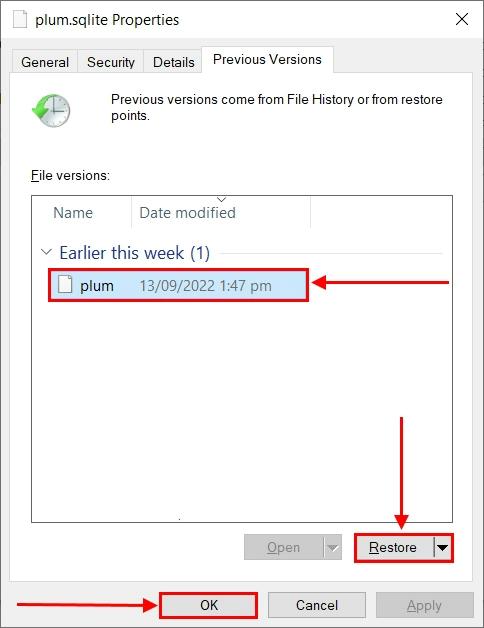
If you’re good at maintaining backups of your important audio files, recovery is often possible using these backups. Windows offer in-built backup utilities such as File History, Backup and Restore, etc., which you can use to get your deleted audio files back. Here’s how to restore permanently deleted audio files from PC using File History backup:
- Firstly, open the folder where your audio file was originally saved.
- Right-click inside the folder and select Properties.
- Go to the Previous Versions tab and choose the backup version you need to restore.
- Click Restore to recover selected files to your device.
Method 02: Recover Audio Using Cloud Backups
Along with in-built backup utilities, you can use cloud backups such as Google Drive, OneDrive, Dropbox, etc. to restore your deleted audio files. If your files were synced with a cloud service, you can recover them in just a few steps. Follow the below steps to recover your lost audio files using Google Drive:
- Open Google Drive and log in using your account credentials.
- Click the Trash section in the left pane.
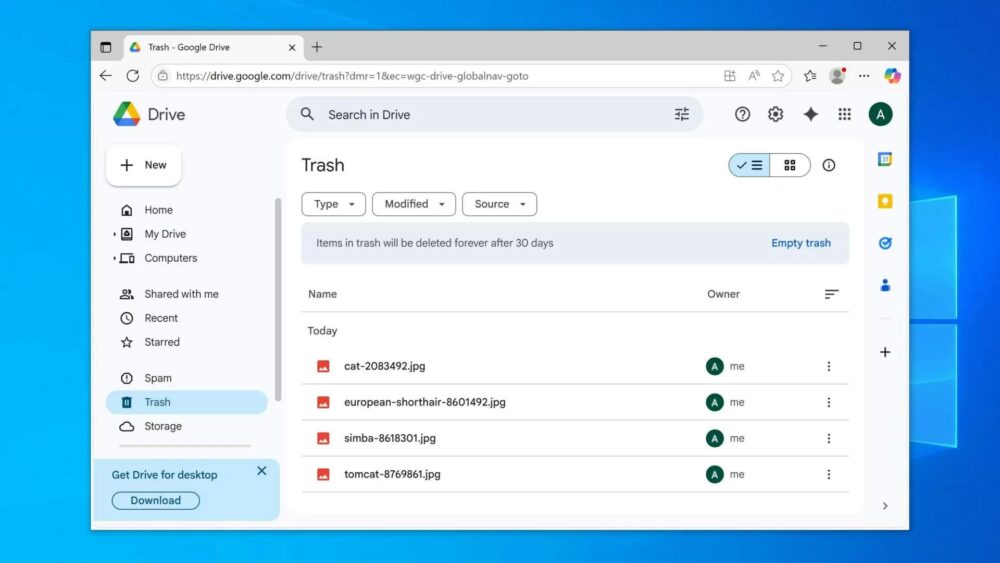
- Locate and select the deleted audio files that you need to restore.
- Right-click on that file and select Restore.
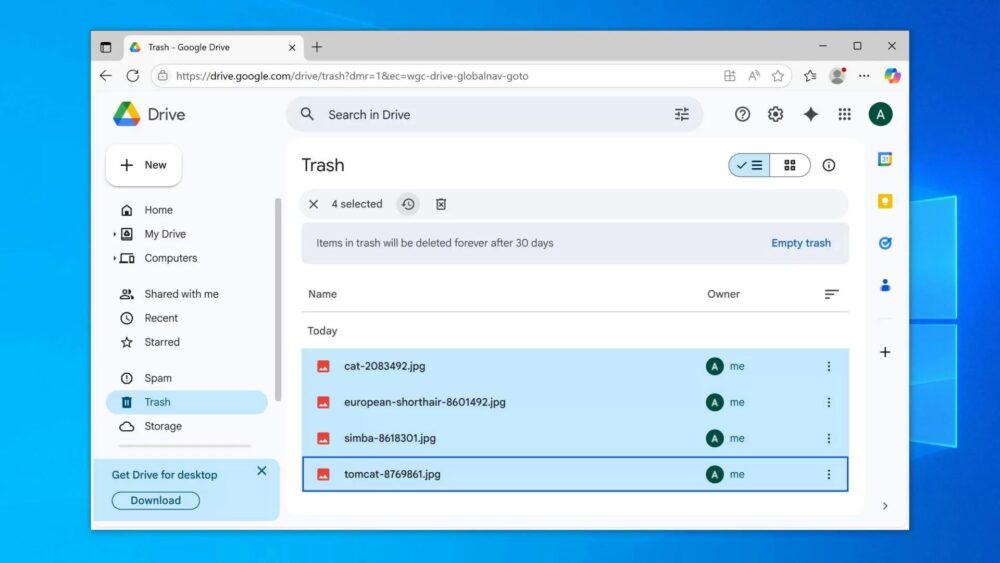
- This will save the selected audio file to its original location.
Method 03: Use Professional Audio File Recovery Software
If files are permanently deleted and no backup exists, you can try third-party audio file recovery software to restore your deleted audio files. Whether your audio files were removed using Shift + Delete, lost after emptying the Recycle Bin, or disappeared due to formatting or system errors, professional tools like Stellar Photo Recovery can help you easily. Despite its name, the software is not limited to photos—it is a powerful recovery tool that can restore a wide range of audio and video files.
You can use the Stellar Photo Recovery tool to recover deleted audio files of various formats, including MP3, WAV, WMA, AAC, and more. The software supports recovery of deleted data from various internal or external storage media, including hard drives, SSDs, USB drives, and memory cards. It also lets you preview the recoverable files before saving them on your device.
Here’s how to restore permanently deleted audio files from PC using the amazing Stellar Photo Recovery tool:
Step 1: Download and install the Stellar Photo Recovery software from its official website on your PC.
Step 2: Launch the software and from the homepage, select Audio (as you need to restore deleted audio files) and click Next to continue.
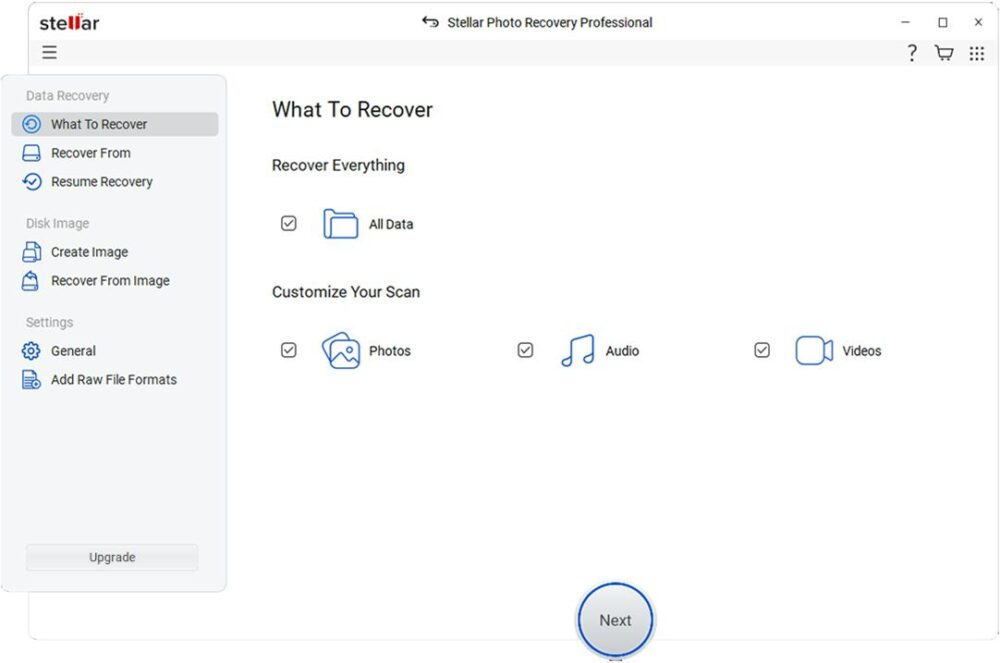
Step 3: Next, choose the storage drive or folder where your audio files were originally stored. Click on the Scan button to begin the process.
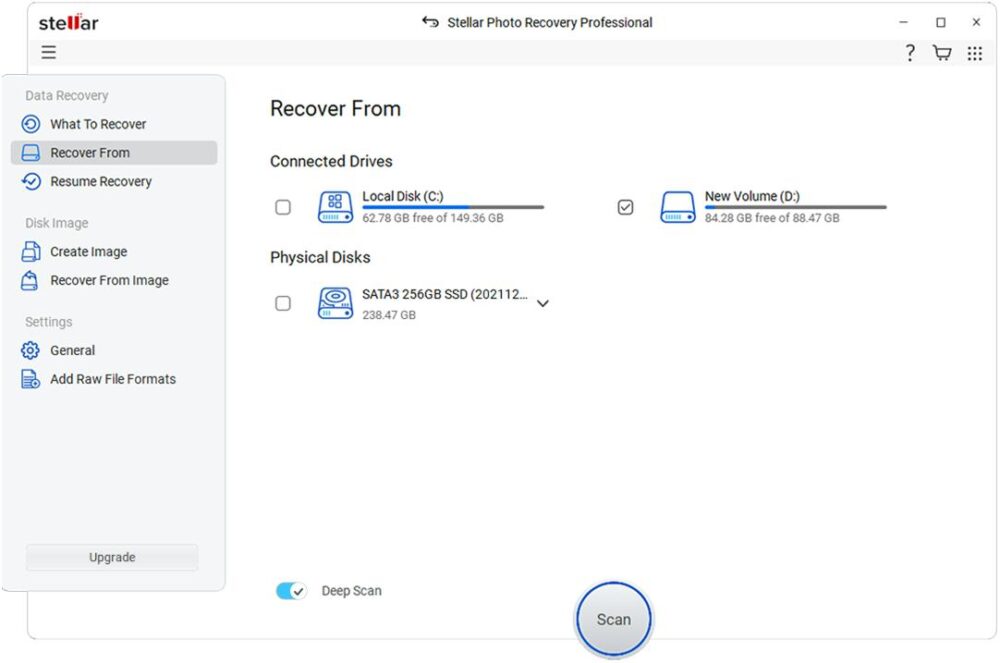
Step 4: Once the scan is complete, the software will display a list of recoverable files. Preview the files and select all you want to restore. Click Recover to save the selected file to your PC.
Note: Choose a different location to save the recovered files—preferably on another drive—to avoid overwriting any remaining data.
Additional Tips for Successful Audio Recovery
Here are some additional tips that you can consider to maximise the chances of successful audio recovery on your PC:
- Do not install your audio file recovery software on the same drive where files were deleted, as it may overwrite and reduce recovery chances.
- Avoid copying or saving any new files to the affected drive, because this can overwrite deleted audio data permanently.
- Use the Deep Scan feature if the initial scan doesn’t find files, as it thoroughly searches hidden or lost audio data sectors.
- Always save recovered audio files to a different storage device or partition to prevent overwriting remaining recoverable data on the original drive.
Conclusion
Permanently deleted audio files are not always lost forever. With the right audio recovery method, you can retrieve them efficiently and safely. Start by checking the previously created backups, then move to third-party audio file recovery software such as Stellar Photo Recovery to restore audio files from various data loss scenarios. By following the step-by-step process and taking necessary precautions, you can restore your valuable audio files without compromising their quality.
The post How to Restore Permanently Deleted Audio Files from PC? appeared first on tooXclusive.
Disclaimer:The opinions presented in this post are those of the mentioned author. The content has been sourced from TooXclusive, with due attribution to the company.
If you wish for us to take down this content, kindly get in touch as soon as possible. This material is shared strictly for promotional purposes only.